Technical Review: A Developer's Guide to the Kiosk Module for Tabletrack - Free
Technical Review: A Developer's Guide to the Kiosk Module for Tabletrack
The front-of-house at a busy restaurant is controlled chaos. Between the phone ringing, walk-ins clustering at the door, and regulars trying to make eye contact, the host station is a bottleneck. The promise of technology is to alleviate these pressure points, not create new ones. This brings us to the tool on the dissection table today: the Kiosk Module for Tabletrack. It's an add-on promising to offload the repetitive task of guest check-ins and waitlist management to a self-service terminal. On paper, it’s a brilliant move. In practice, third-party modules can range from seamless workflow enhancers to bug-ridden nightmares that cause more problems than they solve. My job is to determine where this one falls on that spectrum.
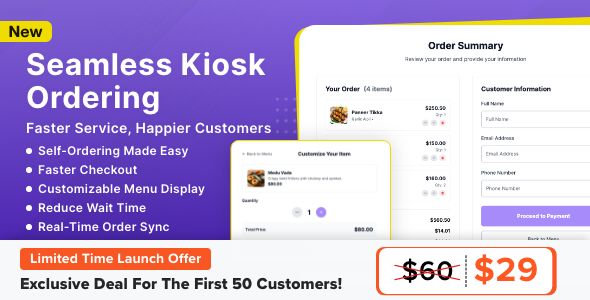
As a developer who has built and integrated systems for the hospitality industry, I'm inherently skeptical of "plug-and-play" solutions. We're going to tear this module down, not just as a user, but as a technician. We'll cover installation, configuration, potential performance pitfalls, and whether it’s a robust tool for a high-traffic environment or just another piece of digital cruft. Let's get our hands dirty.
Part 1: The Technical Deep Dive - Deconstructing the Module
Before you even think about installation, you need to understand what this module is and, more importantly, what it isn't. This isn't a standalone application. It is a parasitic extension; its entire existence depends on the main Tabletrack Restaurant Reservation plugin. If you don't have Tabletrack installed and properly configured, this module is a digital paperweight. This is the first and most common stumbling block for users who don't read the documentation.
Core Functionality: What Does It Actually Do?
At its core, the Kiosk Module hijacks a standard WordPress page and transforms it into a full-screen, guest-facing interface. This interface serves a few specific functions:
-
Reservation Check-in: A guest with an existing reservation can walk up, enter their name or phone number, and confirm their arrival. This action updates their status in the Tabletrack backend from "Reserved" to "Arrived."
-
Walk-in Waitlist: A guest without a reservation can add themselves to the digital waitlist. The interface collects their name, party size, and phone number.
-
Combined Mode: You can configure the kiosk to present both options, allowing guests to choose whether they have a reservation or want to join the waitlist.
-
SMS/Email Notifications: Crucially, it leverages Tabletrack's notification system. When a table is ready for a waitlisted party, staff can trigger an SMS from the backend, automating the "your table is ready" process.
Architectural Considerations and Potential Bottlenecks
As a developer, I'm immediately thinking about how this is built. It's almost certainly a shortcode-driven application ([tabletrack_kiosk]) that uses a combination of PHP for the initial render and a heavy dose of AJAX (Asynchronous JavaScript and XML) for the interactive parts. When a guest searches for their reservation, an AJAX request is fired off to the WordPress backend, querying the Tabletrack database tables or custom post types.
This raises some immediate performance questions:
-
Database Load: Every search, every check-in, and every waitlist submission is a database query. On a busy Saturday night with dozens of guests using the kiosk per hour, this adds a non-trivial load to your server. If you're on cheap, shared hosting, you're going to feel it. This module practically begs for a decent server with proper database caching (like Redis or Memcached) in place.
-
AJAX Endpoint (
admin-ajax.php): WordPress's default method for handling AJAX can be a performance bottleneck. Un-optimized plugins can hammer theadmin-ajax.phpfile, slowing down the entire website, both for kiosk users and anyone browsing your main site. A well-coded module will use the REST API or have its own optimized endpoints, but many still rely on the traditional method. We have to assume this could be a point of failure under heavy load. -
Network Dependency: The kiosk is not a self-contained unit. It's a web browser pointing to a page on your website. If your restaurant's Wi-Fi goes down, your expensive kiosk setup becomes a very unhelpful piece of modern art. A hardwired ethernet connection to the kiosk device is strongly recommended for reliability.
This isn't a tool for the technically faint of heart. It's for businesses that understand their operational needs and are prepared to provide the necessary technical infrastructure. You can get plugins and themes from sources like gplpal, but ensuring they run smoothly in a mission-critical environment is your responsibility.
Part 2: Installation and Configuration - A Step-by-Step Guide
Let's move from theory to practice. I'm going to walk you through the setup process, highlighting the technical nuances and potential "gotchas" that typical guides might gloss over.
Step 0: Pre-Flight Checklist (The Non-Negotiables)
Do not skip this. Seriously. Don't be the hero who takes down the live site during service.
-
Full Site Backup: Use a plugin like UpdraftPlus or your host's backup solution. Get a complete backup of both your files and your database.
-
System Requirements: Ensure you have the latest version of WordPress and a modern PHP version (7.4+ is a good baseline).
-
Tabletrack Base Plugin: This is the most critical dependency. Install, activate, and fully configure the core Tabletrack plugin first. Make sure you can manually add reservations and that your notification settings (if you plan to use them) are working.
-
A "Kiosk" Page Template: This is a pro tip. Your standard theme's page template with a sidebar, header, and footer is a terrible choice for a kiosk. Ask your developer (or do it yourself if you're comfortable) to create a minimal page template. This template should contain only the basic HTML head, the
wp_head()function, thethe_content()function,wp_footer(), and nothing else. This creates a blank canvas for the kiosk interface, preventing customers from navigating away to your "About Us" page.
Step 1: Installation and Activation
This part is standard WordPress procedure, but for clarity's sake:
-
Download the
kiosk-module-for-tabletrack.zipfile. -
In your WordPress dashboard, navigate to Plugins → Add New.
-
Click the Upload Plugin button at the top.
-
Choose the zip file you downloaded and click Install Now.
-
Once installed, click Activate Plugin.
If you see a new settings menu appear under the main "Tabletrack" admin menu, you've succeeded. If not, check for plugin conflicts or permission issues.
Step 2: Creating and Assigning the Kiosk Page
The module doesn't automatically create the front-end interface. You need to tell it where to live.
-
Go to Pages → Add New in WordPress.
-
Give the page a clear title, like "Guest Check-In Kiosk".
-
In the main content editor, switch to the "Text" or "Code" view to ensure no unwanted HTML formatting gets in the way.
-
Insert the shortcode: [tabletrack_kiosk]
-
Crucially: On the right-hand side, under "Page Attributes", find the "Template" dropdown. Select the custom, minimal "Kiosk" page template you created in the pre-flight check. If you didn't make one, a "Full-Width" template is your next best option, but it's not ideal.
-
Publish the page.
Step 3: Diving into the Configuration Panel
This is where you'll spend most of your time. Navigate to Tabletrack → Kiosk Settings (or wherever the new settings panel appears). The options are usually broken into logical tabs.
General Settings
-
Kiosk Mode: This is the master switch. You'll have options like "Reservations Only," "Waitlist Only," or "Both." "Both" is the most common use case.
-
Branding: Look for a logo upload field. Use a simple, high-contrast version of your logo. This is also where you'll find fields for custom text: a welcome message, instructions, confirmation messages, and error messages. Write clear, concise copy. No one wants to read a novel while standing in a crowded lobby.
Reservation Settings
-
Search Fields: Choose how guests identify themselves. Common options are "Name," "Phone Number," and "Email." For privacy and speed, "Phone Number" is often the most reliable unique identifier.
-
Check-in Window: This is a vital setting for managing guest flow. You can set a time window, for example, allowing check-ins from 30 minutes before to 15 minutes after the reservation time. This prevents a 9 PM party from checking in at 6 PM and cluttering your "Arrived" list.
Waitlist Settings
-
Information to Collect: Configure the fields for the waitlist form. "Name," "Party Size," and "Phone Number" are the essentials. Avoid asking for unnecessary information; speed is key.
-
Wait Time Logic: Check how wait times are displayed. Some modules allow you to input a manual quote (e.g., "30-45 minutes") that you update from the backend. More advanced systems might try to dynamically calculate it, but this is often inaccurate. A manually updated, honest wait time is usually better.
Notification Settings
This module almost certainly doesn't have its own notification system. It acts as a trigger for Tabletrack's main notification settings. Double-check your core Tabletrack settings to ensure your SMS gateway (like Twilio) is configured correctly with the right API keys and "From" number. The kiosk is useless if it can't facilitate communication back to the guest.
Step 4: The Physical Hardware Setup
Software is only half the battle. Your kiosk is a physical object in a physical space.
-
Device: An iPad or a robust Android tablet (like a Samsung Galaxy Tab) is the standard choice. A 10-inch screen or larger is recommended. Ensure it's in a secure, weighted stand that can't be easily knocked over or stolen.
-
Browser Lockdown: You absolutely must lock the device to a single web page.
-
On an iPad: Use "Guided Access" (Settings → Accessibility → Guided Access). This locks the iPad to a single app (your web browser) and lets you disable hardware buttons.
-
On Android: Use the built-in "Screen Pinning" feature or a dedicated kiosk app from the Play Store for more robust control.
-
Presentation: Open your browser of choice (Chrome or Safari work best), navigate to the URL of the Kiosk page you created, and enable full-screen mode. Then, enable the lockdown feature.
Part 3: Critical Analysis and Real-World Performance
With the setup complete, let's critically evaluate the module from three perspectives: the guest, the staff, and the developer.
The Guest Experience (UX)
The default UI of most kiosk modules is functional but rarely beautiful. The buttons are generally large and the flow is logical: choose an option, enter details, get confirmation. However, the styling is often generic. It will likely clash with your restaurant's branding. Be prepared to write some custom CSS to align the fonts, colors, and button styles with your brand identity. A good module will have a "Custom CSS" box in the settings. A great one will use well-named, BEM-style CSS classes that make targeting elements predictable and easy.
For example, to change the main button color, you might need to add CSS like this:
<style> .tabletrack-kiosk .btn-primary { background-color: #A52A2A; / Your brand's brown / color: #FFFFFF; border-radius: 5px; } </style>
The speed of the interaction is paramount. If a guest has to wait more than a couple of seconds for a search to complete, they'll become frustrated and abandon the kiosk for a human host, defeating its entire purpose.
The Staff Experience (Operations)
In the Tabletrack backend, a successful kiosk check-in should be seamless. A reservation should flip to "Arrived" status, and a new waitlist entry should appear at the bottom of the list. The key is clarity. Is it obvious which check-ins came from the kiosk versus those entered manually by a host? This information can be valuable for tracking the module's effectiveness.
The biggest operational challenge isn't the technology working; it's managing the exceptions. What happens when a guest mistypes their name? Or when a family of four enters a party size of "40"? The system needs to be simple, but the staff needs to be trained to quickly resolve the inevitable user errors.
The Developer Experience (DX)
This is where we look at code quality and extensibility. A well-built module is a pleasure to work with; a poorly built one is a liability.
-
Styling & Customization: As mentioned, how easy is it to style? If the developer used a mess of inline styles and
!importanttags, you're in for a world of pain. If they used a clean, organized stylesheet, a few lines of custom CSS will be all you need. -
Extensibility: The gold standard for any WordPress plugin is its use of hooks (actions and filters). Does the Kiosk Module offer any? For example, a developer might want to trigger a custom action after a successful check-in, like sending data to a third-party analytics service. A hook like
do_action('tabletrack_kiosk_after_checkin', $reservation_id);would be incredibly powerful. The absence of such hooks means any customization requires modifying the plugin's core files, which is a cardinal sin in WordPress development.
The Verdict: Is the Kiosk Module a Worthwhile Investment?
So, after all the setup and analysis, what's the final word? The Kiosk Module for Tabletrack is not a simple "install and forget" tool. It's a professional-grade extension that requires a thoughtful approach to implementation, from server infrastructure to physical hardware lockdown.
The Good
-
Efficiency: It directly addresses a major operational bottleneck, freeing up staff to handle more complex guest interactions.
-
Modernization: A self-service kiosk provides a modern, tech-forward impression for your business.
-
Data Accuracy: It reduces the chance of staff mishearing a name or phone number, as the guest enters their own data.
-
Integration: It works within the existing Tabletrack ecosystem, preventing the data-silo problem that comes with using disparate systems.
The Not-So-Good
-
Complexity: The setup is non-trivial and requires technical comfort, especially with the hardware and page template aspects.
-
Single Point of Failure: Your check-in process becomes dependent on hardware, software, and your internet connection all working perfectly.
-
Generic UI: Out of the box, the interface will likely require CSS customization to match your brand's aesthetic.
-
Cost: Beyond the plugin itself, you have the cost of the tablet and a secure stand, which can be several hundred dollars.
Ultimately, this module is a powerful tool for the right business. A high-volume restaurant, a busy clinic, or an event venue that processes hundreds of guests in a short period will see a significant return on investment. It's a force multiplier for your front-of-house team. However, a small, intimate bistro would find it to be an impersonal and unnecessary complication.
If you have the technical foundation and the operational need, this module can transform your guest management process from chaotic to controlled. For those building out their WordPress toolkit, exploring repositories of Free download WordPress themes and plugins can provide significant value, but remember that mission-critical tools like this kiosk require a deeper level of technical scrutiny.
评论 0