Vagha Elementor Kit Review: Building a Nightlife Empire or Just a Digital Headache? - Activated
Vagha Elementor Kit Review: Building a Nightlife Empire or Just a Digital Headache?
The nightlife industry doesn't do "subtle." It's a world of saturated neon, deep bass, and curated energy. Translating that high-octane atmosphere to a website is a unique challenge that often leaves standard corporate templates feeling sterile and out of place. This is the niche that the Vagha - Night Club & DJ Elementor Template Kit aims to fill. It promises a turnkey visual identity for clubs, DJs, and event promoters. But as any seasoned developer knows, promises on a sales page and reality in the WordPress backend can be two very different things. We're going to tear down this kit, piece by piece, from installation to a critical look at its components, to determine if it's a solid foundation for your next project or just a pretty facade that crumbles under pressure.
First Impressions: Deconstructing the Vibe
Unzipping the Vagha kit, you're not greeted with a theme, but with a collection of JSON files and a manifest. This is the first crucial distinction: Vagha is an Elementor Template Kit, not a standalone WordPress theme. It's designed to be imported into a lightweight base theme, like the free "Hello Elementor," and then used to build out your site page by page. This is a modern, flexible approach that avoids the bloat of traditional multi-purpose themes, but it also places a heavier reliance on Elementor and its Pro version.
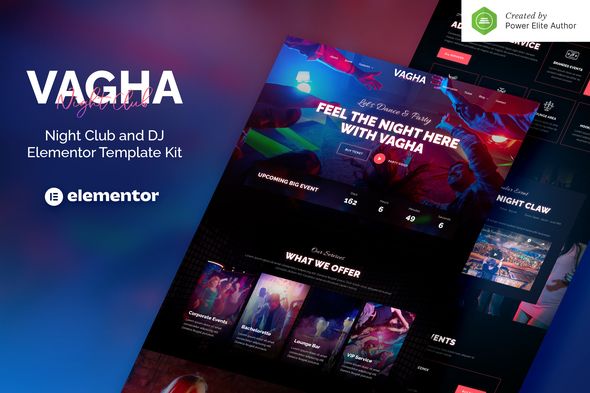
Aesthetically, Vagha hits its target squarely. The design language is unapologetically dark, punctuated by vibrant, almost electric, pinks and cyans. It uses high-contrast typography and dynamic layouts that feel energetic and modern. The demo content immediately evokes the right mood: slick DJ profiles, pulsing event calendars, and immersive photo galleries. The kit includes templates for everything you'd expect:
-
Multiple Homepage Variants: Offering different layouts for clubs, festivals, or individual DJs.
-
About Us: A standard but necessary page with a stylish twist.
-
Event Listings & Single Event Pages: The core of any nightlife website.
-
DJ/Artist Lineup & Single Profiles: Essential for showcasing talent.
-
Photo & Video Galleries: For capturing the energy of past events.
-
Contact & Booking Pages: Functional forms with the same dark aesthetic.
-
Header, Footer, and 404 Templates: Global parts to ensure a consistent site-wide experience.
-
Pop-ups: For promotions or age verification gates.
On the surface, it’s a comprehensive package. The design is cohesive and professional. The question is, how well is it built under the hood, and how painful is the process of making it your own?
The Technical Underbelly: Dependencies and Best Practices
Before you even think about importing this kit, you need to understand its foundation. This is not a simple "upload and activate" process. The entire structure of Vagha relies on two key plugins:
-
Elementor (Free Version): The core page builder.
-
Elementor Pro: This is a non-negotiable requirement. The kit heavily utilizes Pro features like the Theme Builder (for headers/footers), custom forms, pop-ups, and advanced widgets. Attempting to use this kit without Elementor Pro will result in a broken, dysfunctional site.
This dependency is both a strength and a weakness. It's a strength because it leverages a powerful, widely-used ecosystem. You're not locked into a proprietary theme builder with a limited future. It's a weakness because you are now responsible for the performance overhead that comes with the Elementor stack. Poorly optimized images, excessive animations, or a cheap hosting plan can quickly turn Vagha's slick design into a sluggish, frustrating user experience.
From a developer's perspective, the kit's reliance on Elementor's Global Styles for colors and fonts is a major positive. This means you can change the primary neon pink to an electric green across the entire site by editing a single color value in the Site Settings. This is a hallmark of a well-constructed kit and saves hours of tedious manual adjustments.
The Installation Gauntlet: A Step-by-Step Developer's Guide
Let's get our hands dirty. Here is the no-nonsense guide to taking Vagha from a ZIP file to a functional website. Follow these steps precisely to avoid common pitfalls.
Prerequisites: The Non-Negotiable Setup
Do not proceed without having these in place on a fresh WordPress installation:
-
A decent host: Don't try this on $1/month shared hosting. Elementor needs some RAM and CPU to breathe.
-
The latest version of WordPress.
-
The "Hello Elementor" theme: Go to Appearance > Themes > Add New and install it. It's the cleanest, most lightweight canvas for a kit like this. Activate it.
-
Elementor & Elementor Pro plugins: Install and activate both. Ensure your Elementor Pro license is active to access all features. You can find excellent plugins and themes at an affordable price from marketplaces like GPLPal.
Step 1: The Import Process
With the foundation laid, the import is surprisingly straightforward, thanks to Elementor's native kit management tools.
-
In your WordPress dashboard, navigate to Elementor > Tools.
-
Click on the "Import / Export Kit" tab.
-
Under "Import a Template Kit," click the "Start Import" button.
-
Select the main .zip file you downloaded for the Vagha kit. Do not unzip it first.
-
Elementor will read the manifest file and show you what's about to be imported: templates, content, and site settings. It will also flag any missing plugin requirements (which you should have already handled).
-
Select what you want to import. For a new site, you'll want to check all boxes: Templates, Content, and Site Settings. Heads up: Importing 'Content' will add demo pages, posts, and images. This is great for a new build but should be avoided on an existing site with live content.
-
Click "Next." Elementor will now do the heavy lifting, importing all the JSON files, setting up the Theme Builder templates, and applying the global styles. This can take a few minutes. Don't close the browser window.
Step 2: The Post-Import Sanity Check
Once the import success message appears, the job is not done. This is where amateurs stop and pros begin. You must now verify and clean up the import.
-
Check Menus: Go to Appearance > Menus. The importer tries to set up the primary menu, but it often gets it wrong or creates a duplicate. Find the main menu (it will likely be named "Primary" or similar) and ensure it's assigned to the correct "Header" location in the Manage Locations tab.
-
Verify Theme Builder: Navigate to Templates > Theme Builder. Here, you should see the imported Header, Footer, and possibly templates for Single Post, Single Page, and Archives. Check the "Display Conditions" for each one. The header should be set to "Entire Site." The footer should be, too. If these aren't set, your custom header and footer won't appear.
-
Set the Homepage: Go to Settings > Reading. Your homepage will likely be displaying your latest posts. Change this to "A static page" and select the imported "Home" page (or one of its variants) from the dropdown.
-
Flush Permalinks: Go to Settings > Permalinks. Without changing anything, just click "Save Changes." This is a classic WordPress troubleshooting step that rebuilds the site's URL structure and can fix a lot of unexpected 404 errors after a big import.
After these checks, your site should look very close to the live demo. Now the real work of customization begins.
A Critical Look at the Templates
A kit is only as good as its individual parts. Let's analyze the core templates and identify their strengths and potential weaknesses for a real-world club or DJ website.
Homepage Templates
The homepages are visually stunning. They make excellent use of negative space, large background videos/images, and clear calls-to-action ("View Events," "Book a Table"). The layouts are built with nested sections and columns, which is standard for Elementor. Developer's Note: Be mindful of this deep nesting. While it allows for complex visual design, it can add to DOM bloat and slightly impact performance. Lazy loading your images and videos will be critical here.
Events & Ticketing (The Weak Link)
This is arguably the most important feature, and also the kit's biggest conceptual limitation. Vagha's event pages are built using standard WordPress posts, styled to look like events. A "Single Event" template is just a styled "Single Post" template from the Theme Builder.
What this means for you:
-
There is no built-in event management functionality. No dates, no times, no recurring events, and certainly no ticketing.
-
The "Buy Ticket" button on the demo is just a static link. You will have to manually integrate this with a third-party service like Eventbrite, Ticketmaster, or a WordPress plugin like The Events Calendar or WooCommerce Bookings.
-
This is not a deal-breaker, but it's a significant piece of work the kit doesn't do for you. You're buying a visual skin for your events, not a functional event system. For a small club with a few events a month, this might be fine. For a large venue or festival, you will need to bolt on a robust backend system and then style its output to match Vagha's design.
DJ/Artist Profiles
Similar to the events, the DJ profiles are also implemented as standard posts, likely assigned to a "DJ" category. This is a simple and effective approach for a small roster of artists. You can leverage custom fields (using a plugin like ACF) to add structured data like social media links or SoundCloud embeds, and then pull that data into the Single Post template using Elementor Pro's dynamic tags. It’s a workable solution that balances simplicity and flexibility.
Galleries
The galleries are well-executed, using Elementor's Pro gallery widgets. They are responsive and feature lightbox functionality out of the box. Performance Warning: The responsibility for image optimization is 100% on you. A nightclub gallery can easily contain hundreds of high-res photos. Without aggressive compression and WebP conversion (using a plugin like Smush or ShortPixel), you will absolutely destroy your page load times. The template provides the layout; you must provide the performance.
Responsiveness and Performance
I tested the imported templates across various breakpoints. The mobile experience is solid. The designer clearly put thought into how the complex desktop layouts should collapse onto a single column. The navigation burger menu is clean, and clickable elements are appropriately sized.
Performance, however, is a blank slate. An empty Vagha installation on good hosting is fast. But this is misleading. The final performance will depend entirely on your content. A homepage with a 20MB background video, 10 uncompressed PNGs, and 15 external scripts for tracking and widgets will be slow, regardless of how well-coded the template is. Follow best practices:
-
Compress all images before uploading.
-
Use a caching plugin (like WP Rocket or Litespeed Cache).
-
Minimize the use of third-party plugins.
-
Host videos on YouTube/Vimeo, don't self-host.
The Verdict: Is Vagha the Right Tool for the Job?
So, after the deep dive, what's the final call on the Vagha Elementor Template Kit?
This is not a "website in a box." It's a massive head start. It's a professional design system and a collection of pre-built layouts that can save a freelancer or agency 50-100 hours of design and development work. The aesthetics are on point, and the underlying structure using Elementor's global settings is sound.
You should use Vagha if:
-
You are a freelancer or a small agency building a site for a nightclub, DJ, or event promoter on a reasonable budget and timeline.
-
You are already proficient with Elementor and Elementor Pro and understand how to manage its ecosystem.
-
The client needs a visually impressive "brochure" site with basic event listings, and you plan to integrate a third-party ticketing service.
-
You understand that you are responsible for content, optimization, and integrating any complex functionality like ticketing or e-commerce.
You should probably avoid Vagha if:
-
You are a performance purist who avoids page builders at all costs.
-
You need a highly complex, scalable event management platform with native ticketing, user accounts, and vendor management. You'd be better off starting with a dedicated event theme or building a custom solution.
-
You are a complete beginner who expects to click "install" and have a finished, functional website without any further configuration or integration work.
In essence, Vagha is an exceptional visual accelerator. It delivers a high-impact, professional design that perfectly captures the nightlife vibe. It knows its lane and stays in it, providing the visual framework and leaving the heavy-duty backend functionality to you and other plugins. For the right project, it's a fantastic value, providing a premium look for a fraction of the cost of a custom design. You can find many more professional tools and even Free download WordPress themes to jumpstart your next project.
评论 0