Falling Blocks Unity Asset: A Developer's Deep-Dive Review and Guide - Activated
Falling Blocks Unity Asset: A Developer's Deep-Dive Review and Guide
The digital asset marketplace is flooded with "complete game" templates promising a fast track from idea to app store launch. Many are digital dead-ends, riddled with buggy code and outdated dependencies. We're here to dissect one such offering: the Falling Blocks - Complete Unity Game + Admob package. The pitch is simple: a ready-to-go, monetizable Tetris clone. As developers, we know "ready-to-go" is rarely true. Our job today is to rip this package apart, examine its code, architecture, and monetization hooks, and determine if it's a solid foundation for your next mobile hit or a technical liability you should avoid. We'll go from a high-level review to a granular, step-by-step installation and build guide.
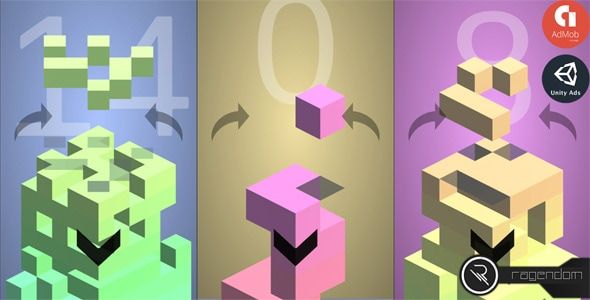
First Impressions: What Exactly Are You Buying?
At its core, Falling Blocks is a classic falling-block puzzle game. The mechanics are universally understood: geometric shapes, or "tetrominoes," fall from the top of the screen, and the player must rotate and move them to form complete horizontal lines, which then disappear. The game ends when the blocks stack up to the top. This template provides the fundamental logic for this gameplay loop, wrapped in a basic UI with score tracking, next-block previews, and pause functionality.
The key selling points, beyond the core game, are its alleged completeness and pre-integrated Admob support. This is aimed squarely at developers who want to minimize coding time and focus on marketing and deployment. The idea is to purchase the asset, apply a new visual theme (a "reskin"), plug in your own ad IDs, and publish. It’s an appealing workflow, but the quality of the underlying asset is what determines if this process takes a few days or a few painful weeks.
The Technical Audit: Under the Hood of Falling Blocks
A pretty UI and a functional game loop are just the surface. The long-term value of a game template lies in its code quality, project structure, and extensibility. Let's open up Unity and see what we're really working with.
Project Structure and Organization
Upon importing the asset and opening the project folder, the initial layout is reasonably competent. You'll find the standard Unity directories: Scenes, Scripts, Prefabs, Materials, Sprites, etc. This is a good sign. A chaotic root folder is a major red flag, often indicating a rushed or amateur development process.
-
Scenes: Contains the essential scenes like MainMenu, Game, and possibly a GameOver scene. They are distinct and logically separated, which is the correct approach.
-
Scripts: This is the heart of the project. The scripts are not heavily commented, which is a definite minus. Naming conventions appear to be PascalCase for classes and camelCase for methods and variables, following C# standards. The scripts are functionally divided, with classes like Block, GridManager, GameManager, and AdManager. This suggests a component-based architecture rather than a monolithic "god script," which is a relief.
-
Prefabs: The different block shapes are stored here as prefabs. This is crucial for efficient instantiation. The UI elements like buttons and panels are also likely prefab-based, which makes modifying the user interface more manageable.
-
Sprites & UI Assets: All the visual components—block sprites, backgrounds, button images, fonts—are located here. This is your primary target for reskinning. The assets are generic, clearly designed to be replaced.
Code Quality and Architecture
Let's dive into the C# code. Opening up the core scripts reveals a functional but not particularly sophisticated architecture. It's a classic example of a MonoBehaviour-driven system, which is common for smaller Unity games and perfectly acceptable for this type of project.
The GridManager.cs script is the brain of the operation. It likely manages the 2D array or similar data structure that represents the playfield. It handles checking for completed lines, clearing them, and shifting the remaining blocks down. The code here is procedural. It does its job, but don't expect to find elegant design patterns like the command pattern for player input or a finite state machine for game states (e.g., Playing, Paused, GameOver). The game state is probably managed by a few boolean flags within a GameManager.cs script.
Performance seems adequate for the game's scope. The operations—moving blocks, checking lines—happen on a grid that is small enough not to cause significant frame drops on modern mobile devices. However, there doesn't appear to be any object pooling for the falling blocks. Each new block is a fresh instantiation (Instantiate()) and destruction (Destroy()). For a simple game like Tetris, this is a minor sin. For a game with more objects, this would be a serious performance bottleneck due to garbage collection pressure. If you plan to extend this game with lots of particle effects or other dynamic elements, you might want to implement an object pool yourself.
Extensibility is a mixed bag. Adding a new tetromino shape would be relatively straightforward: create a new prefab with the correct sprite and child object positions, then add it to the spawner's list. Changing game rules, like adding a "bomb" block that clears a 3x3 area, would be more difficult. You would need to dive deep into the GridManager logic and carefully add new conditions without breaking the existing line-clearing code. The code is not built with modularity as a primary goal; it's built to execute one specific game design.
Monetization: The Admob Integration
This is a critical feature. The package includes a script, likely named AdManager.cs or similar, that acts as a wrapper for the Google Mobile Ads SDK. The implementation is basic but functional.
-
Banner Ads: A persistent banner ad is typically anchored to the bottom of the screen. The code to request and display this is usually in the Start() method of the AdManager.
-
Interstitial Ads: These are the full-screen ads. The integration calls for an interstitial ad at logical breakpoints, most commonly on the game-over screen. You press "Retry," and an ad is shown before the next round begins. This is a standard and effective placement.
The implementation is hard-coded. The ad unit IDs are stored as public string variables in the AdManager script, exposed in the Unity Inspector. This makes it easy to change them, but it's not a very robust system. There's no abstraction layer; the game calls the AdManager directly. This is fine for a simple project but can become messy if you decide to add other ad networks (mediation) later. There is no out-of-the-box support for Rewarded Ads, which is a missed opportunity. Implementing rewarded ads (e.g., "Watch an ad to continue") would require you to write the C# code to handle the callbacks and grant the reward, which is a non-trivial task for a beginner.
Installation and Customization Guide: From Zero to Build
This is where the rubber meets the road. Let's walk through the entire process of taking this template and making it your own, ready for the Google Play Store or Apple App Store.
Step 0: Prerequisites
Before you even download the file, make sure your development environment is ready.
-
Unity Hub & Unity Editor: Check the asset's documentation for the recommended Unity version. Using a newer or older version can lead to script compilation errors or broken prefab links. Let's assume it requires Unity 2021.3.x LTS for stability.
-
IDE: Visual Studio or JetBrains Rider for editing C# code.
-
Platform SDKs: You'll need the Android SDK (usually bundled with Unity's Android Build Support) and/or Xcode for iOS builds.
-
Google Admob Account: You can't monetize without it. Go create an account and set up two new Ad Unit IDs (one for Banner, one for Interstitial) for your new app.
Step 1: Project Setup
-
Download the project zip file from your purchase source, likely a provider like GPLPal.
-
Unzip the file into a clean folder on your development machine. This is your Unity project folder.
-
Open Unity Hub. Click "Add" or "Open" and select the folder you just unzipped.
-
Unity will begin importing the project. This can take several minutes. You may see warnings in the console about obsolete APIs, which is common with assets that haven't been updated in a while. Most can be ignored unless they are red error messages that stop compilation.
-
Once loaded, open the main game scene from the Scenes folder to verify everything is working. Press the Play button in the editor. You should be able to play a basic round of Falling Blocks.
Step 2: Core Configuration - Package Name & Admob IDs
This is the most critical step. Do this before anything else.
-
Set the Package Name: Go to File > Build Settings. Select your target platform (Android or iOS). Click "Player Settings". In the Inspector window, under "Player", find the "Other Settings" section. Locate the "Identification" heading. Change the "Package Name" (on Android) or "Bundle Identifier" (on iOS) to your unique name. The standard format is com.yourcompanyname.yourgamename. This MUST be unique on the app stores.
-
Integrate Your Admob IDs:
-
In the Project window, find the script that manages ads (e.g., AdManager.cs).
-
There might be a prefab or a GameObject in your main scene called "AdManager" or similar. Select it.
-
In the Inspector, you will see the Ad Manager script component. It will have public fields for "Android Ad ID" and "iOS Ad ID" for both Banner and Interstitial ads.
-
Copy the Ad Unit IDs you created in your Admob account and paste them into these fields. Be careful not to mix them up. Use the test IDs provided by Google during development to avoid being banned.
Step 3: The Reskinning Process
Now for the creative part. "Reskinning" means replacing all the visual and audio assets to give the game a new identity.
-
Background: Find the main background image in your scene hierarchy, likely a UI Image or a Sprite Renderer. Drag your new background sprite into its "Source Image" or "Sprite" field.
-
Blocks: Navigate to the Sprites/Blocks folder. You will see the image files for each color of block. Create your new block sprites, ensuring they have the exact same dimensions as the original files. Overwrite the old files or replace them and update the references in the block prefabs located in the Prefabs folder. This is a tedious but necessary process.
-
UI Elements: Buttons, panels, and score text are controlled by the UI Canvas. Expand the Canvas object in your scene hierarchy. Select each button and replace its "Source Image" with your new button sprite. Do the same for any panels or frames.
-
Fonts: Import your desired font file (.ttf or .otf) into the project. Select your UI Text or TextMeshPro objects in the scene and change their font property to your new font.
-
Audio: Find the AudioManager or similar GameObject. It will have Audio Source components attached. Replace the audio clips for background music, line clears, and block movements with your own .mp3 or .wav files.
The key to a smooth reskin is being methodical. Replace one asset at a time and test in the editor to ensure you haven't broken any references. If you change file names instead of overwriting, you will have to manually update the references in every prefab and scene that uses them.
Step 4: Building and Deploying
With the configuration and reskinning complete, it's time to build the application package.
-
Go to File > Build Settings.
-
Ensure your target platform (Android/iOS) is selected.
-
For Android:
-
Go to "Player Settings" and configure your Keystore under "Publishing Settings". A Keystore is a secure file that contains your digital signature. You must create one and back it up safely. You cannot update your app on the Play Store without it.
-
Set the version number.
-
Click "Build". Unity will ask for a location to save the .apk or .aab (Android App Bundle) file. The .aab is the modern format required by Google Play.
-
For iOS:
-
Set your bundle identifier and version number in Player Settings.
-
Add descriptions for privacy-sensitive data usage (e.g., advertising identifier) under "Other Settings".
-
Click "Build". Unity will generate an Xcode project.
-
Open the generated project in Xcode on a Mac. Connect your developer account, sign the app, and build it for your device or for archiving to submit to the App Store Connect.
The Verdict: A Solid Starter Kit with Caveats
So, is the "Falling Blocks - Complete Unity Game + Admob" asset a worthwhile investment? The answer is a qualified "yes".
Who Is This For?
-
Beginner Developers: This is an excellent learning tool. By dissecting a complete, working project, you can learn how a simple game is structured. The process of reskinning and changing Admob IDs is a fantastic, real-world introduction to the mobile publishing pipeline.
-
Indie Developers on a Deadline: If your goal is to launch a simple, monetized game quickly to test a market or generate modest ad revenue, this template gets you 80% of the way there. The time saved not coding the core grid logic and block movement from scratch is significant.
-
Entrepreneurs & Marketers: For those who aren't coders but want to enter the app market, this provides a functional base that can be handed over to a freelance artist for a reskin, drastically reducing development costs compared to building from scratch.
Pros:
-
Functional Core: The game works out of the box. The core logic is sound and bug-free for the intended scope.
-
Monetization Ready: The Admob integration, while basic, is functional. It saves you the headache of importing the SDK and writing the boilerplate code for banners and interstitials.
-
Simple Structure: The project isn't over-engineered. Its simplicity makes it relatively easy for even a novice to navigate and understand.
-
High Customization Potential: Because it's a Tetris clone, the core mechanic is timeless. A creative reskin (e.g., sushi pieces, construction blocks, alien artifacts) can give it a completely unique feel.
Cons:
-
Lack of Advanced Features: No rewarded ads, no achievements, no leaderboards, no in-app purchases. This is a bare-bones implementation.
-
Mediocre Code Quality: The code is functional, not exemplary. It lacks comments, robust architecture, and considerations for major future expansion. Don't buy this expecting to learn best practices in software engineering.
-
Potential for Outdatedness: Like many assets on marketplaces that offer things like Free download WordPress themes and game templates, you must check its last update date. Unity and its related SDKs (like Admob) evolve quickly. An asset that hasn't been updated in a year could require significant work to get running on the latest Unity version.
Ultimately, this Falling Blocks template is a tool. It's a hammer, not a fully-automated construction robot. It does one job well: it provides a C# and Unity foundation for a Tetris-style game. It successfully shortcuts the most tedious parts of the initial development. But it does not eliminate the need for work. You still need to provide the artistic vision, configure the build settings meticulously, and navigate the complex app store submission processes. For the right price and the right developer, it's a valuable head start. Just go in with realistic expectations and be prepared to get your hands dirty in the code.
评论 0